MycadLAYERS

What is a CAD Layer?

The common metaphor for a layer “clear plastic sheet” although initially helpful is overly simplistic tending to lodge in a drafter’s mind forever hampering a fuller understanding of layers.

The first thing to say about LAYERS is that “LAYERS” is not the best word to describe them. Forget layers as anything physical (transparent sheets and the like) and think instead of “LAYERNAME” as a LABEL for a list of object properties. One should think of “assigning” the property of LAYERNAME to objects rather than assigning objects to a layer. Although it is common to refer to drawing “ON” a layer, typically done by setting a layer to be the current layer and about “MOVING” objects from one layer to another in reality this is assigning a LAYERNAME oops! LABEL as a property of objects.

Each Layer or rather LAYERNAME (Properties List Label) has a number of user definable properties assigned to it by Autocad such as color and line-type and may in addition may have any number of other implied properties assigned by association via the layer NAME or LABEL.   Such implied properties may include the nature, function and location of objects within a project. 

Note that if OBJECT properties are assigned BYLAYER (the commonly preferred option) those properties are associated with the OBJECT by virtue of their LAYERNAME but if properties are assigned BYOBJECT they are attached to the object rather than the LAYERNAME and hence will not change if the OBJECT is given a new LAYERNAME.  (PHEW!)

If you really want yo see how complex Layer Names can become go to Center for the Study of Architecture (Archeology)

Why create Layernames that imply properties to objects?

See also MycadZONES?

What is a CAD Layer?

The common metaphor for a layer “clear plastic sheet” although initially helpful is overly simplistic tending to lodge in a drafter’s mind forever hampering a fuller understanding of layers.

The first thing to say about LAYERS is that “LAYERS” is not the best word to describe them. Forget layers as anything physical (transparent sheets and the like) and think instead of “LAYERNAME” as a LABEL for a list of object properties. One should think of “assigning” the property of LAYERNAME to objects rather than assigning objects to a layer. Although it is common to refer to drawing “ON” a layer, typically done by setting a layer to be the current layer and about “MOVING” objects from one layer to another in reality this is assigning a LAYERNAME oops! LABEL as a property of objects.

Each Layer or rather LAYERNAME (Properties List Label) has a number of user definable properties assigned to it by Autocad such as color and line-type and may in addition may have any number of other implied properties assigned by association via the layer NAME or LABEL.   Such implied properties may include the nature, function and location of objects within a project. 

Note that if OBJECT properties are assigned BYLAYER (the commonly preferred option) those properties are associated with the OBJECT by virtue of their LAYERNAME but if properties are assigned BYOBJECT they are attached to the object rather than the LAYERNAME and hence will not change if the OBJECT is given a new LAYERNAME.  (PHEW!)

If you really want yo see how complex Layer Names can become go to Center for the Study of Architecture (Archeology)

Why create Layernames that imply properties to objects?

You may wonder why I have taken the trouble to re-write what you already knew.  Layers are so important and a Standard is so critical that it is worth saying again.  A complete project can be drawn coincident and then separated drawing by drawing (or function by function) by viewing and plotting appropriate layers.

Most Layer tutorials concentrate on how to use the program saying little about Layer Naming Standards or how to use layers effectively and rarely offer advice about using potentially faster keyboard commands rather than slow visually overwhelming layer manager dialogues so let me explain what MYCADLAYERS is and does.

MycadLAYERS:

  • Automates Layer naming. Eliminates confusion, delay and error in layer naming .
  • Effective layer naming standard solves Layer NAME problem.
  • Custom Layer MANAGEMENT commands eliminate difficulty of filtering layers.
  • Supports OVERLAY modeling and WORKZONES.
  • Aids viewing and printing
  • Reduces drawing file size.
  • Provides a link to BIM.
  • Produces more intelligent and more accurate drawings

What if the MycadLAYERS system does not suit my profession? Go to MycadLAYERS Q & A

Opinion:

A Layers feature is the single most useful aspect of CAD and every “Layers” tutorial that you will find on the web will advise the use of a Layer naming Standard.  But the advice generally stops there because no one seems to have settled on a really workable standard.  Both the American and European standards try to be everything to everyone but succeed at being of little use to anyone in actual practice. Nevertheless I strongly advocate the use of a standard; just not the ones proposed.

Everyone seems to agree that Layers are essential to CAD and a Layer Naming Standard is essential to the effective use of Layers but there are several National Standards and many more Custom Standards and little or no agreement on which one to use.  To understand why you need Layers go to CADNOTES a simple but convincing explanation of why you need layers.  To get a good understanding of Layers go to ENGINEERING.COM then think about how a layer naming strategy can really help in drawing management. 

So which Standard should I use?  The answer seems to be that you should use the Standard required by your employer as any standard is better than none.

Here is my personal advice:

This is a personal view challenging the regular explanations of CAD layers. It includes references to MycadKEYS and MycadLAYERS that are proprietary (but free) products and thus should be considered in conjunction with other “authorized” explanations.

MycadLAYERS, like many other Layer naming standards,  extends the properties of objects by embodying properties in the Layer-NAME. These are: Object-type, Color, Line-type, Job-status, Drawing-type, View-point and View-ID.  An example layername might be: “BRI  3  7  X  511  P  02” (expanded for readability) that means: “BRIck color3(green) line-type dashed(7), work-phase Xisting, drawing-type 001, Plan-view level 02”.  This first defines the building element’s drawn graphics, its project status, and workzone  (drawing identity).  Looking a little closer it can be seen that the first section is five characters, the second is a single character and the last six. 

If a drawing has a simple single purpose there is no need to include the last seven characters. A five character layer name may be sufficient and in fact for many simple drawings any more is a waste of time. So much for complex National Layer-naming Standards. MycadDKEYS provides an automated system for generating and managing Layers and permits the use of either five or twelve character Layer names depending on the complexity of the drawing or may simply be turned OFF if not needed.

MycadLAYERS layer commands guide user through layer naming and reject errors:

MycadLAYERS uses a built-in automated Lisp functions to create and manage layer names.  A typical command is LR (Layer Resolve) that prompts the user to enter layer field codes for Drawing-type, View-Point and view-ID and will then freeze and thaw relevant layers to reveal the required WorkZONE of the drawing. 

LR+ (Layer Resolve plus) and LR- (Layer Resolve minus) allow for various combinations of WorkZONES to be compared for alignments and completeness.

LR is designed for Model-space and a complimentary function WR (WorkZONE Resolve) manages the VPLAYER command in Paper-space to freeze and thaw the contents of Viewports.  MycadLAYERS performs the WR operation automatically, simply by scanning the layer name of each selected Viewport using the embodied WorkZONE information to automatically VPLAYER FREEZE and THAW layers as required.

AutoCAD’s LAYERSTATE functions can only restore saved collections of layers and ignores any new layers created since a State was saved however MycadLAYERS’ Layer Resolve and Workspace Resolve functions freshly filter ALL layers new and old to produce a correct and up-to-date display thus avoiding the need for new layers to be added by the operator before re-saving the state.

MycadLAYERS provides BOTH a dialog and a Command line interface both of which are much faster and simpler to use than much simpler to use than Autocad LAYMAN layer tables.  Gone is the problem of remembering how to create new layernames.  Command line functions automatically prompt the user through the process of naming.  Alternatively, while learning, one can use the built-in layer dialogue.

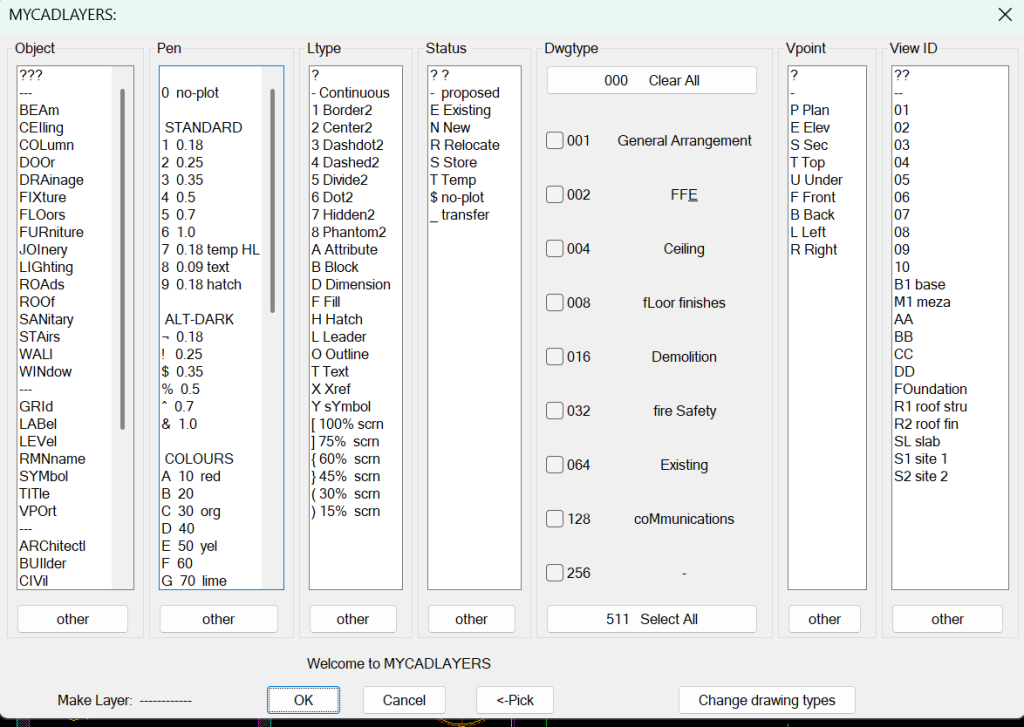
Automatic Layer Dialogue creates layers to naming standard and applies correct color and line-type automatically.

(Scroll columns for additional options Pick options as required.)

A typical multi-level, multi-drawing type model with five overlaid plans – all layers visible.

The same drawing in Paperspace with WorkZONES (Layers)  Resolved to display the five separate floor levels:

Typical Elevation:

First let’s define what a LAYER is and what it is NOT.:

AutoCAD persists in describing Layers thus: “Layers are like transparent overlays on which you organize and group objects in a drawing.”  This has been and still is the greatest disservice that Autodesk could impose on AutoCAD users.  The concept that a Layer is a surface or transparent film or even a collection of objects drawn on a transparent film is misleading.

Let’s start again at the beginning.  All objects in a drawing have various properties one of which is its LAYERNAME.  This particular property could just as easily have been called Object  FUNCTION, CLASS, FORMULA, etc.  Yes; all a bit clumsy and none of them convey the full nature of a LAYER  so let’s stick with LAYERNAME.  Note that I use “LAYERNAME” not “LAYER” because LAYER still hints at the transparent film concept whereas objects with the same LAYERNAME can exist in many different drawings and in three dimensions.  The most important feature of a LAYERNAME is that it can convey many different implied properties. 

A Layer naming standard is the cornerstone of any CAD system and is at the heart of efficient drawing production.

Benefits of a layer naming Standard:

  1. No time wasted thinking what to call a new layer
  2. No time wasted working out the function of an existing layer.
  3. No confusion over the order of or abbreviation of layer name fields.
  4. Drafters are interchangeable without confusion.
  5. Drawings are shareable without confusion.
  6. Layers with common characteristics can be managed using wild-cards.
  7. Editing time is reduced.
  8. Accuracy is improved.

Layer naming Standards:

Much effort has been put into a producing a Layer naming Standard.  In Europe the outcome was ISO/DIS 13567, a generic system applicable to all professions.  The result was somewhat complex as it tried to be all things to all people.  Nevertheless the principles are very sound and will provide a basis for your own custom system. The US developed its own system based somewhat on ISO/DIS 13567.  Neither of the two, or any other system that I know of, has provided a consistently workable standard capable of practical adoption.

Nevertheless systematic layer naming is the key to good data management. Any system is better than none but Layer naming continues to be one of the most tedious and time-consuming, yet most important, tasks in CAD.

Layer properties:

Unless color and line-type are assigned BYOBJECT rather than BYLAYER each LAYER has at least the following properties.

  • Layer-name
  • Line-type
  • Line-weight
  • Color
  • Plot-ability

In addition most layer name Standards use the LAYERNAME to imply a number of additional object properties.

MYCADLAYERS, like many other layer naming standards,  extends the properties of objects by embodying properties in the Layer-NAME itself. Such properties could be Object-type, Job-status, Drawing-type, View-point and Location of the objects in a drawing set.  For example: “BRI 3 7 X 511 P 02” (expanded for readability) that means: “BRIck color3(green) line-type dashed(7) Xisting Plan-view level 02”.  This defines the building element’s drawn graphics, its project status, drawing type and location in a drawing set.  Looking a little closer it can be seen that the first five characters define drawn nature of the object and the last seven where they belong in a drawing set.  If a drawing has a simple single purpose there is no need to include the latter seven characters. A five character layer name may be sufficient and in fact for many simple drawings any more is a waste of time. So much for complex national layer-naming standards. MYCADLAYERS provides an automated system for generating and managing layernames and their properties and permits the use of either five or twelve character layernames or may simply be turned OFF when not needed.

MYCADLAYERS makes the following AutoCAD commands virtually redundant:

  • LMAN
  • VPLAYER Newfrz and Vpvisdflt options
  • LAYERPALETTE
  • LAYERSTATE 

Layer name length:

MYCADLAYERS provides for two different layer name lengths of either five or twelve characters, or may be turned OFF, depending upon the drawing requirements; twelve for drawings with defined Workzones and five for simple one-level one-concept drawings or OFF if a naming standard is not required.

When MYCADLAYERS control is set to 5 or 12 characters new layer names created by MYCADLAYERS adopt the correct length and format according to the current setting of layer-name length.   When layer control is OFF, uncontrolled entry of layer names is permitted. A one-off uncontrolled entry may also be achieved without re-setting the current-layer-name length by pressing ` (back quote) prior to entering the layer name.  This has the effect of turning layer-name length to OFF for the current entry only. (similar to invoking a generic Autocad command using a MYCADKEYS alias).

By default MYCADLAYERS starts up with layername control OFF.  The user toggles between: OFF, 5chr, or 12chr by entering the alias $7<enter> or pressing Function Key 7  repeatedly until the required number of layers is set.

Saving MYCADLAYERS layer settings:

Layername length and associated WORKZONE settings are saved with the drawing from session to session and may be easily changed at any time. The results are displayed in AutoCAD’s status line.  

MYCADLAYERS Dialog box:

While learning a 12chr MYCADLAYERS dialog box is available that displays each layer field as a scroll-able list of optional pre-set user choices.  Alternatively the operator may type a response into the “other” box.  The dialog box can save time by using the current layer name as a template in which fields may be optionally changed to create the desired new layer name.  The resulting layer name then becomes the current layer.  New layers are automatically created with the correct color and line-type.

Examples illustrated are Architectural but are fully customizable.

Layer names are made up of seven fields: Object, Pen, Line-type, Status, Drawing-type, Viewpoint and View ID.  All but the Drawing-type are scrollable columns that can contain as many options as desired. All options are editable to suit the individual projects and disciplines.  Drawing-type has nine check-boxes related to the bit-codes 001 to 256.  All or as many of these as is relevant may be checked indicating what drawing-types a particular layer appears in.  The drawing-types themselves are also editable using a separate dialogue box “Change drawing types” that allows the creation of alternative drawing-type schemes.

If an acceptable code is not found in any column the user may create a new code using the “other” option at the bottom of the column. 

The “Make Layer” note at the bottom left by default shows the current layer.  This changes progressively as options are selected to indicate the new layer name.  Typically only one or two fields may need to be changed thus further reducing the effort to create new layers.  When finished press “OK” and the new layer complete with correct color and line-type will be created and made current.

The drawing-type names to the right of the check-boxes show capitalized letters that may be used as mnemonic substitutes for entering the full three digit number when using keyboard entry instead of the dialogue box.

Keyboard v dialog box:

Designed mainly for new users but like all other AutoCAD commands experienced users will find it quicker to use the keyboard once they are familiar with MYCADLAYERS naming conventions.  The keyboard is as always a faster and more complete interface and prompts the user through each relevant data field, accepting only appropriate entries.  All MYCADLAYERS commands that use Layer names accept the keyboard method.

Drawing-types relevant to project:

Although for many projects the preferred drawing types and code assignments will be the same, on occasions it may be necessary to use a different drawing-type scheme.  This is provided for in the system.  It is possible to have a different set of drawing types for every project.  The selected Drawing Types Set is saved with the drawing and automatically appears in the layer dialog box in subsequent CAD sessions.  To change the scheme select “Change drawing types” in the bottom right corner of the Layer dialogue box.

Examples of OBJECT codes might be:

Construction: — all  ALUminium  BEAm   BLOckwork  BRIckwork  CABinetwork  CEIling  CERamic tiles  COLumn  CONcrete  DOOr  DP_  DownPipe  EARthwork   EQUipment  FENce      FINish  FiXIngs (screw)  FLAshing  FIXture (basin)  FLOor (surface)  FOOting  FURniture  GLAzing  GRAphic/sign GRIlle  HANdrail  HARdware INSulation  JOInery  KERb  MEMbrane  METalwork   PAInt  PARtition   PAVing  PIPe   PLAster  RENder   RESilient fin  ROAd  ROOf  SEAlant  SLAb   STAirs  STEel  STUd walls  TILes  THReshold  TRUss  VENt  WALl   WINdow  WIRe  WOOd   

Discipline:   BUIder  CIVil  COMunictns  ELElectrical  ESCalator  EXTernal  GRAphics  HYDraulics  INTerior   LANdscape  LIFt  MEChanical  STRuctural  SURveyor 

Reference:  FRAme  GRId  LABel  LEVel  LEGend   SCHedule   TITle  VPOrt

Examples of PEN codes might be:

Pens printed in BLACK – standard line thickness:

In order of Pen-number,    Line-thickness,     Full Color    Dark Color   Light Color

1     0.18      red                A  clr 12        G  clr 14   

2     0.25     yellow          B  clr 52        H clr 54   

3     0.35     green            C clr 92         I clr 94   

4     0.5       cyan             D 1clr 32       J 134  

5     0.7       blue              E clr 172        K clr 174  

6     1.0       magenta      F clr 212       L clr 214 

7     0.18     white           temporary highlight.               

8     0.18     light grey         hatch                  

9     0.18     dark grey        grids                   

Pens printed in COLOR – line thickness custom     

In order of Pen-number,    Color-number,   Plot color

Colors:

M   10  red,     N  30  org,  O  50   yel,   P  70   lime,  Q  90   grn,   R  110  aqua,  S 130   cyan,  T 150  lt-blu,  U 170  blu,   W  210  mag,    V 190  prpl ,  W  210  mag,  X  230 crim,  Y  35  brown,  Z  11  peach

Greys:   

  !    clr 250     15%,    $   clr 251     30%,       % clr 252     45%,       ^  clr 253     60%,   &  clr 254     75%   

Examples of LINETYPE might be:

–   continuous  1 border  2 center  3 dashdot  4 dashed  5 divide  6 dot  7 hidden  8 phantom  Special  A Attrib   B Block  D Dimension   F Fill  H Hatch   L Leader  T Text  M mview   Xref  Y sYmbol  S Sewe

Examples of STATUS or STAGE might be:

Status: –  proposed  B asBuilt    D Demolish  E Existing  F Future  M Msured   N New   O Obsolete  P Prelim  R Relocate  S Set-out   T Temp   U re-Used   

Stage:  – current   1  2  3   4  5  6  7  8  9  0

Scroll to Top